Selection
You can select objects in the 3D and drawing worlds by using a mouse and other tools.
Direct Selection
Left mouse button (LMB) will directly select an object based on the context of a scene.
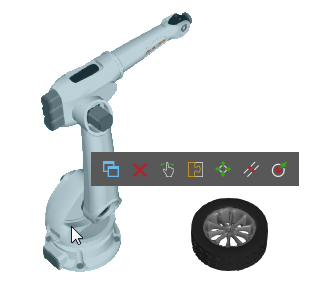
Press and hold CTRL to add/remove an object from the current selection.
Select Commands
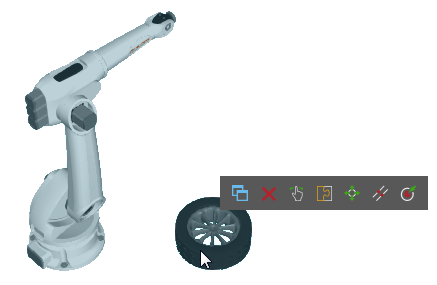
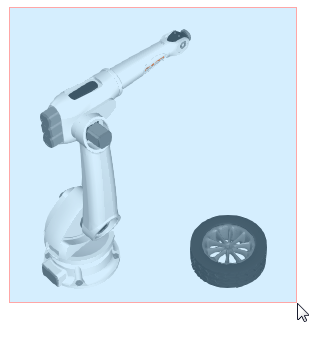
Most tabs on the Ribbon show the Manipulation group, which has a set of Select commands for drawing selection areas with the left mouse button (LMB) and indirectly selecting objects.
Components
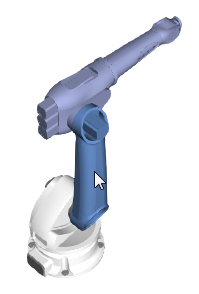
In Layout view, you can select components.
Robots
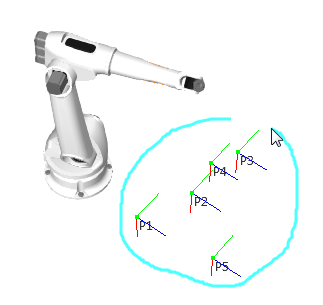
In Robot view, you can select robot positions. You may also use the Jog command to directly select a robot controller.
Features
In Modeling view, you can select features of a component.
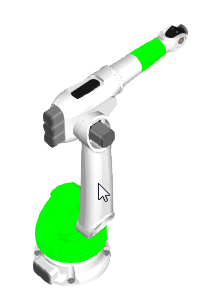
Tip: You can double-click a feature to select its node.
Layout Items
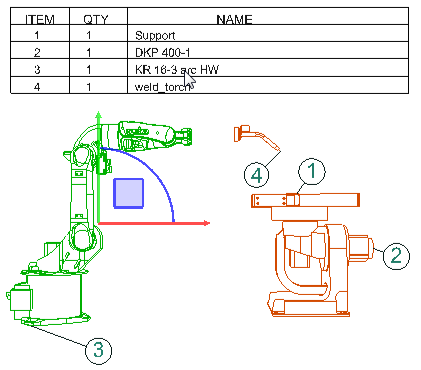
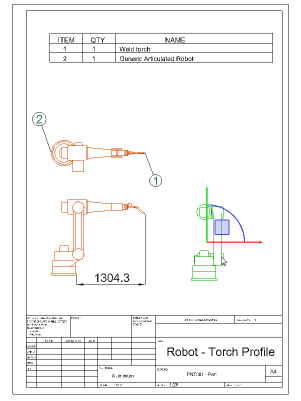
In Drawing view, you can select layout items, for example dimensions, annotations, drawings and drawing templates.
Panels
Panels can be used to select objects based on the context of a scene.
Components
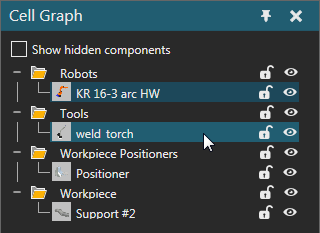
In Layout view, you can use the Cell Graph panel to select components.
Robots
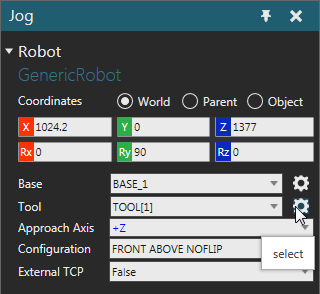
In Robot view, you can use the Jog command and panel to select a robot and its data.
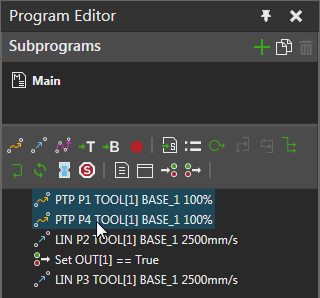
You may also use the Program Editor panel to select statements in a robot program.
Modeling
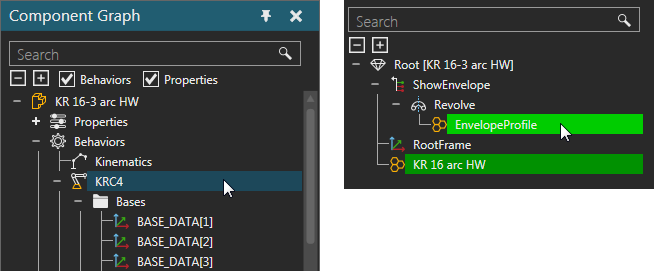
In Modeling view, you can use the Component Graph panel to select the nodes, properties, behaviors and features of a component.
Drawings
In Drawing view, if you are using a drawing template, you can use the template's parts list/bill of materials to select drawings and line sets representing components.